How to Add Internal Links in WordPress, What Happens to Them, and When to Automate
To add an internal link in WordPress, select the words you want to link, press Ctrl+K (Cmd+K on a Mac) or click the Link button in the block toolbar, type a few letters of the target post's title, and click it in the list. An internal link is a link from one page of your website to another page of the same website. If you only need the shortcuts: Ctrl+K adds a link, Ctrl+Shift+K removes it.
The steps below were checked in WordPress 7.1.3, the current version as of October 20, 2026. After the steps, this guide covers what WordPress does with those links later, when linking by hand stops scaling, and what changes when a plugin adds the links for you.
This guide is published by the maker of Autolinker, a plugin that adds internal links automatically. Everything before the section on plugins works in plain WordPress, with no plugin.
How do you add an internal link in the block editor?
Select the text, press Ctrl+K or Cmd+K (or click Link in the block toolbar), type at least two letters of the page's title in the Search or type URL field, and click the result: the link is applied at once, and it is saved with the post when you click Save, or Publish for a new post.
As of WordPress 7.1.3, the steps are:
- Select the words that will carry the link, in a paragraph, a heading or a list. These words are the anchor text.
- Press Ctrl+K (Cmd+K on a Mac), or click the Link button in the block toolbar, right after Bold and Italic. With nothing selected, the shortcut opens the command palette instead.
- Type at least two letters of the target post's title in the Search or type URL field. WordPress searches as you type.
- Click the post in the list. The link is applied immediately, with no Apply button to press. To link to an address instead, paste the full URL and press Enter.
- Click Save, or Publish if the post is new. The link is stored with the post when you save it.
For example, in a post about baking, select the words sourdough starter, press Ctrl+K, type sour, and click your post How to Make a Sourdough Starter. The words stay as they were; only the link is added.
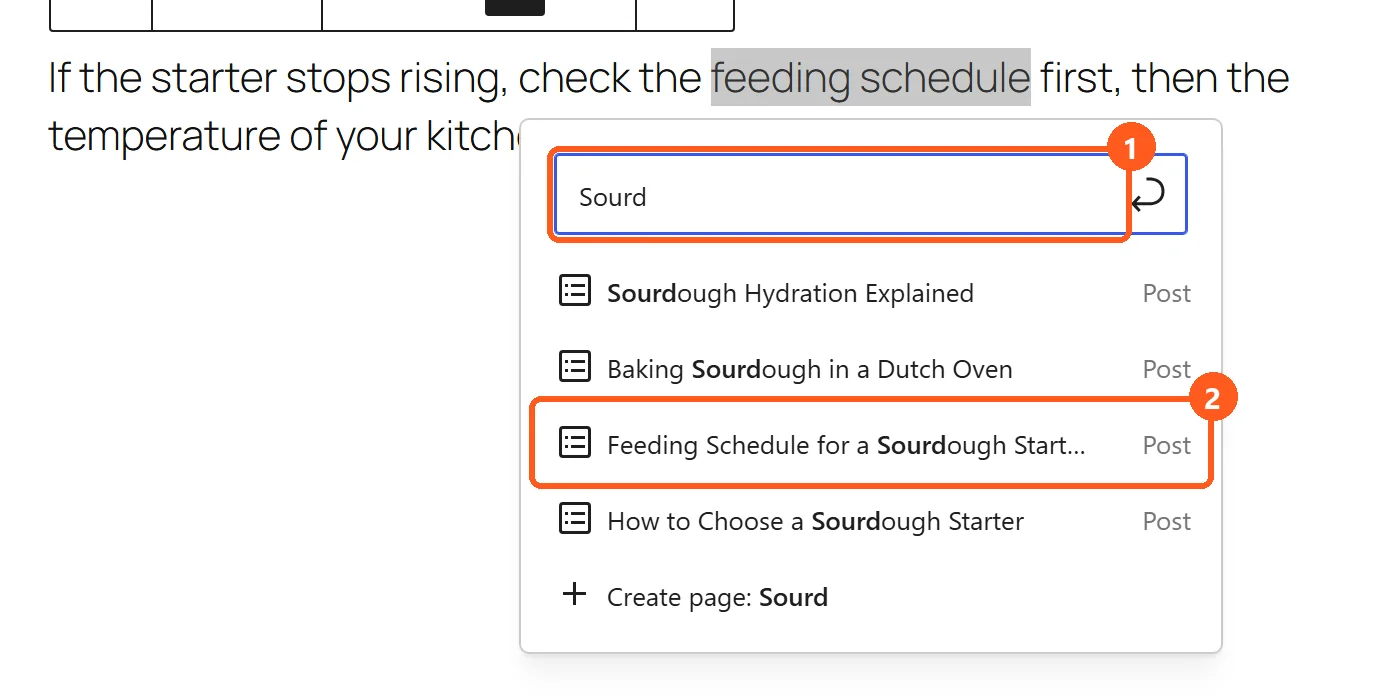
Pasting a URL over selected text links the selection directly, without opening anything. If the selected words are themselves a web address, Ctrl+K or the Link button links them straight away, with no search box. With the field empty, WordPress lists your 20 most recent pages, not posts, so a post always needs a few letters of its title.
If the post you want does not show up, the limits of the link search are explained in When manual stops working and in the first question of the FAQ.
Open in new tab and nofollow: what do the link options do?
In the block editor, the link options appear when you edit a link you have already placed: click the link, choose Edit link (the pencil), then Advanced. Open in new tab writes target="_blank" and rel="noopener", and Mark as nofollow, added in WordPress 6.4, adds rel="nofollow"; there is no sponsored or ugc option.
The options are not offered while you create a link, only when you come back to it. WordPress remembers whether you left Advanced open, so the drawer opens the same way next time. Neither option changes where the link points: both only add attributes to it. To undo one, open the link the same way, uncheck the option and click Apply.
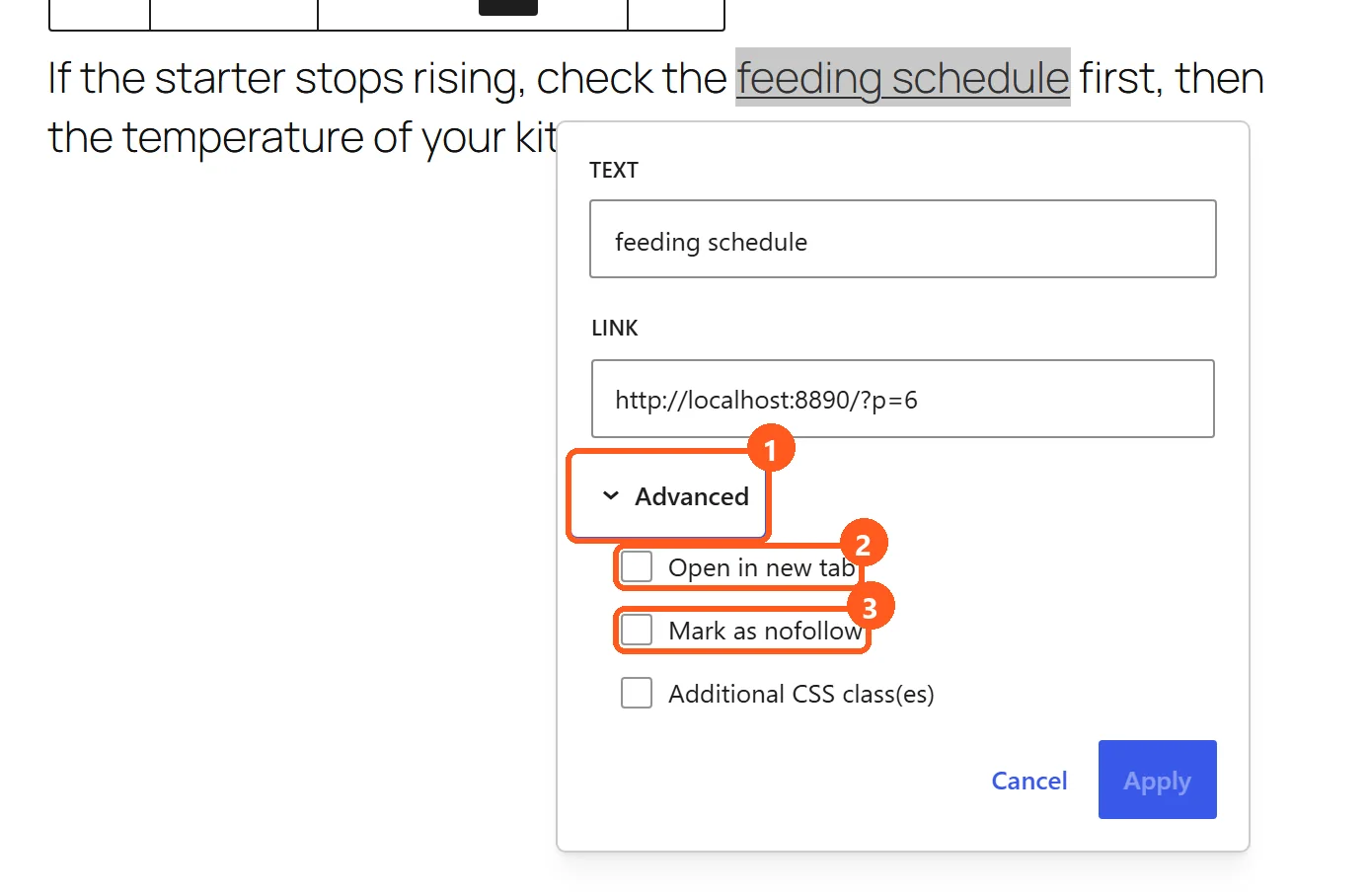
Leave Open in new tab off for internal links: the reader stays in one tab and the Back button works. WordPress leaves it off by default.
Nofollow is a different matter. For pages of your own site, Google's guidance on qualifying outbound links recommends a robots.txt disallow rule rather than nofollow when you want to keep Google from crawling a link. Whether an internal link should ever carry nofollow gets its own guide: should internal links be nofollow.
How do you add an internal link in the classic editor or a page builder?
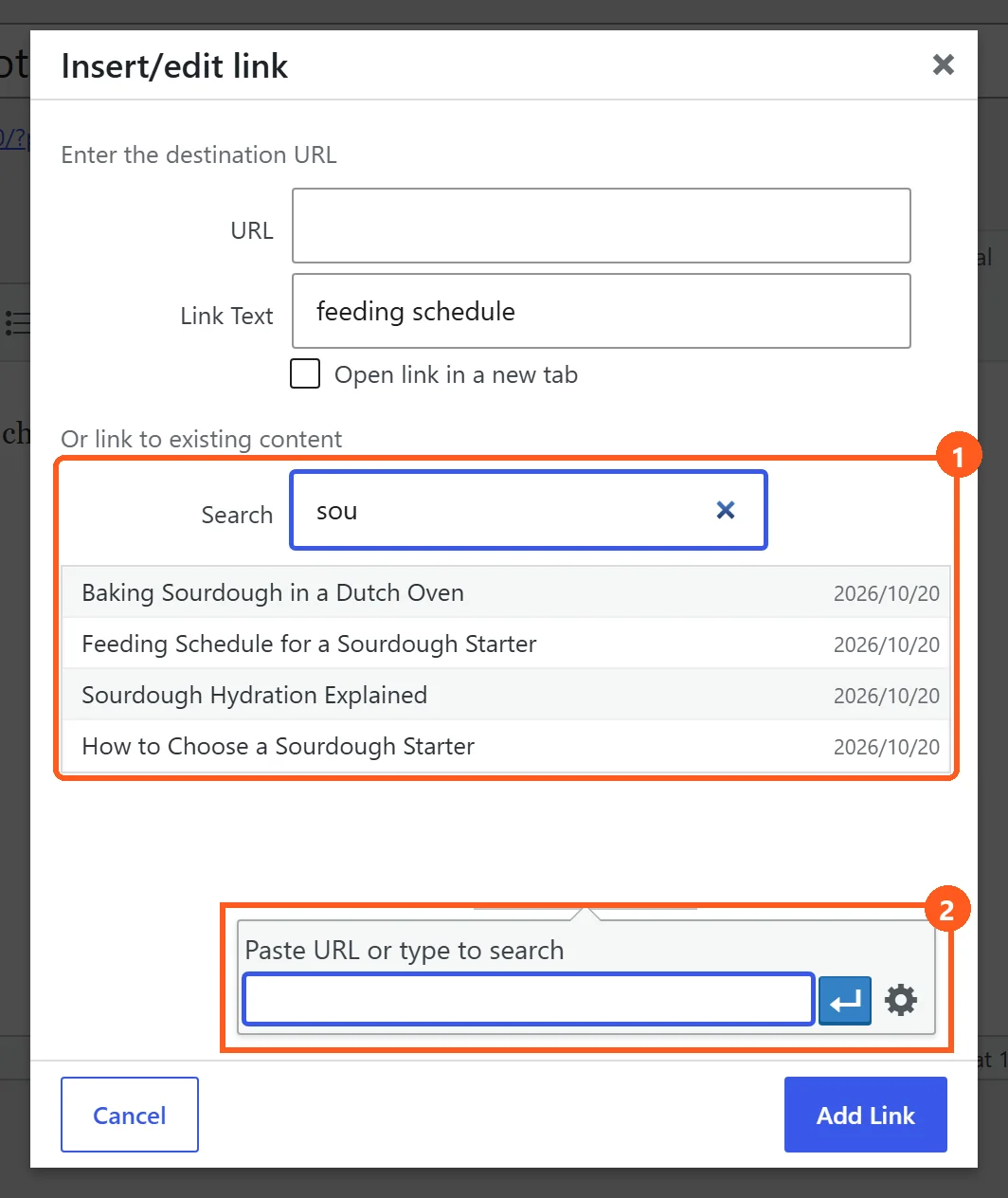
In the classic editor, select the text and press Ctrl+K (or click Insert/edit link): type two letters for suggestions, or click the gear (Link options) for the full dialog, where Or link to existing content searches your published posts and pages from three characters.
Picking a suggestion only fills in the address: press Enter or click Apply. In the full dialog, click a result, then Add Link. Alt+Shift+A opens the same link box, and Cmd+K works on a Mac. The full dialog lists published content 20 items at a time. Its only option is Open link in a new tab, which writes target="_blank" with no rel attribute, and the classic editor has no nofollow option. Alt+Shift+S removes a link. On a published post, click Update to save it.
With nothing typed in its search, the full dialog shows your recent items. Each result shows its title, with the date for a post and the content type for anything else. The Link Text field changes the words of the link without leaving the dialog.
Page builders have their own text editors: Elementor's docs say its Text Editor widget is built on TinyMCE, the editor behind the classic WordPress editor, and for Divi or another builder, use the link button in that builder's text toolbar.
What does WordPress do with your internal links afterwards?
As of WordPress 7.1.3, WordPress does not touch a link once you have placed it: if you change the slug of a published post, WordPress redirects the old address with a 301, but if you change a page's slug, no redirect is created, and WordPress never rewrites the link in the posts that point to the old address.
The difference comes from how WordPress stores pages. When a post's slug changes, WordPress keeps the old slug and sends visitors who ask for it to the new address. Pages are hierarchical, so WordPress keeps no record of their old slug, and a link to the old page address can end on a 404. Either way, your other posts still hold the old address: for a post, every click goes through a redirect; for a page, the link can be broken.
The practical rule follows: settle a slug before you publish, and leave it alone afterwards. If you must change a page's slug, search your posts for the old address and update each link to it by hand.
One exception: in a navigation menu, a link tied to a page follows the page's new address, in classic menus and, since WordPress 6.9, in the Navigation block. A link in your text does not.
WordPress also never adds a link inside your text by itself. The Latest Posts and Page List blocks show lists of links, but only where you insert them, and they never link words in your sentences. In plain WordPress, every link in the body of a post is one you placed by hand.
Repairing links that already point to an old address is covered in fix broken internal links in WordPress, and checking every link on the site at once is the job of an internal link audit.
When does adding internal links by hand stop working?
Linking by hand stops scaling when every new post means reopening old ones: WordPress never adds a link back to a new post, and the link search shows at most 20 published results, ranked on their titles, so on a large archive you have to know which post you are looking for.
Placing the links in a new post is quick: you know what the post covers, and you search for the posts it should mention. The links that count as much go the other way, from older posts to the new one, and nothing in WordPress suggests them. Each one means opening an older post, finding a sentence that fits, linking it and saving again. Every new post adds one more page that older posts could link to, so the work grows with the archive. The cost is not the click. The cost is remembering which of your older posts should now mention the new one.
The link search has three limits, as of WordPress 7.1.3. It finds published content only. It shows at most 20 results. And it orders them by the title alone: WordPress looks for your words in titles, excerpts and content, but a post that matches only through a word in its body drops to the bottom of the list. The search works when you know the title, and much less when you only know the topic. The search answers a question you already have; to see where links are missing, you need a way to find internal linking opportunities.
The archive is the other limit. On a site where older posts were written without links, the editor offers no way to place them except one post at a time. Catching up on a whole archive is a project of its own, covered in the guide to add internal links to old posts.
What does an internal linking plugin do?
An internal linking plugin takes over part of the job in one of three ways: it suggests links that you click in one by one, it links a keyword you chose to a URL you chose, or it picks and places links itself. An internal linking plugin also either writes each link into the post, where the link stays if you remove the plugin, or adds the link each time the page is served, so the links go with the plugin.
Suggestions keep you in charge: the plugin lists possible links, and you accept each one. A keyword rule is set once: you map a word or phrase to an address, and the plugin links it wherever it appears, within the limits you set. Full automation picks both the target and the words, and places the link without asking.
Where the link lives decides what happens later. A link written into the post is ordinary HTML in your content, like a link you placed by hand, so it stays if you deactivate or uninstall the plugin. A link added when the page is served never reaches the stored post: the plugin inserts it each time the page goes out, so it disappears when the plugin stops. Both kinds are common. As of October 8, 2026, of 16 WordPress plugins checked that place links themselves, 9 write them into the post and 6 add them when the page is served.
Each way has its own failure. A keyword rule can link every occurrence of a phrase, wherever it appears. An anchor chosen by a tool can be words that are not in your sentence, unless the tool checks. A cap on links per post keeps the count down in both cases. Which one fits your site is a different question: see the best internal linking plugins for WordPress.
How does Autolinker add internal links automatically?
Autolinker picks the links itself: when a post is published or updated, Autolinker finds the posts closest in meaning, has a model choose an anchor that already appears word for word in your text, and writes the link into the post, where the link stays if you remove the plugin.
Autolinker compares what your posts mean, not which keywords they share: OpenAI embeddings rank the posts closest to the one being linked, and only those above a similarity threshold go further. A model then picks the anchor, and the link is kept only if those exact words already appear in your post. How embeddings measure meaning is explained under semantic internal linking.
The defaults keep the links sparse: 3 links per post, anchors of 2 to 6 words, one link per pair of posts, the first occurrence only, and never inside a heading, an existing link or code. There is no review queue: a link that passes these checks is placed. WordPress saves a revision before each change, and you can remove any link in one click; the words stay, and that link is never placed again.
When a post or page that Autolinker links to changes its slug, Autolinker rewrites its own links to the new address. Links you wrote by hand are never rewritten automatically: those that point to an old post slug are listed in Autolinker's Link health screen, with an Update href button for each one.
Publishing or updating a post queues it, and one button queues every existing post. WP-Cron works through the queue, 5 jobs a minute by default, as long as WP-Cron runs.
Autolinker needs your own OpenAI API key; your text goes to OpenAI only, and OpenAI bills you. The free plugin has no link cap. Autolinker Pro is an add-on, from $29 a year for one site, with an economy mode, scheduled passes, priority pages and a CSV report.
What Autolinker does not do: it has no keyword rules, no review queue, no AI provider other than OpenAI, and no link attributes such as nofollow or new tab. Elementor text editor widgets are linked; SeedProd is not supported yet. Setup is in the Autolinker docs.
Before you add more internal links: count, anchors, AI and languages
How many links a post needs, which words to link, whether to use AI and how to link across languages each have their own guide; here is the short answer to each.
Why internal links matter, and the general rules, have guides of their own: does internal linking help SEO, and internal linking best practices.
There is no universal number of links per post. Link where a reader would want to go next. The caps you see in tools, such as Autolinker's default of 3 links per post, are settings, not answers. The question gets its own guide: how many internal links per page.
Link descriptive words that are already in your sentence. Google's guidance on crawlable links asks for anchor text that is descriptive, reasonably short and relevant to both pages, and warns against generic words such as "click here". Choosing those words is covered in internal link anchor text.
A model can choose links by what posts mean rather than by matching keywords, as explained in AI internal linking. A chatbot can also suggest anchors and addresses, but each one has to be checked against your real posts before you paste it; see internal linking with ChatGPT.
On a site in several languages, a link stays in the language of the post: an English post links to English pages. How to keep it that way with a translation plugin is covered in internal linking on a multilingual WordPress site.
Google recommends that each page you care about receive a link from at least one other page of your site, as the same crawlable links guidance says. A page that gets none is an orphan; to spot them, see find orphan pages in WordPress. Grouping posts by subject so they link to each other is covered in silo structure in WordPress and topic clusters.
Questions about internal links in WordPress
Why doesn't my post show up when I search for it in the link box?
The link search finds published content only. A draft, scheduled or private post can be linked only by typing its address, which can still change before the post is published.
Is there a faster way than Ctrl+K?
Type [[ in a paragraph. WordPress lists up to 10 published posts and pages, and inserts a link to the one you pick. The shortcut has existed since WordPress 6.0.
Can I link to a category, a tag or a PDF?
Yes. The link search also finds categories and tags, empty ones included, and media files such as PDFs. A media result points to the file itself, not to a page about it.
How do I link to a section of the same page?
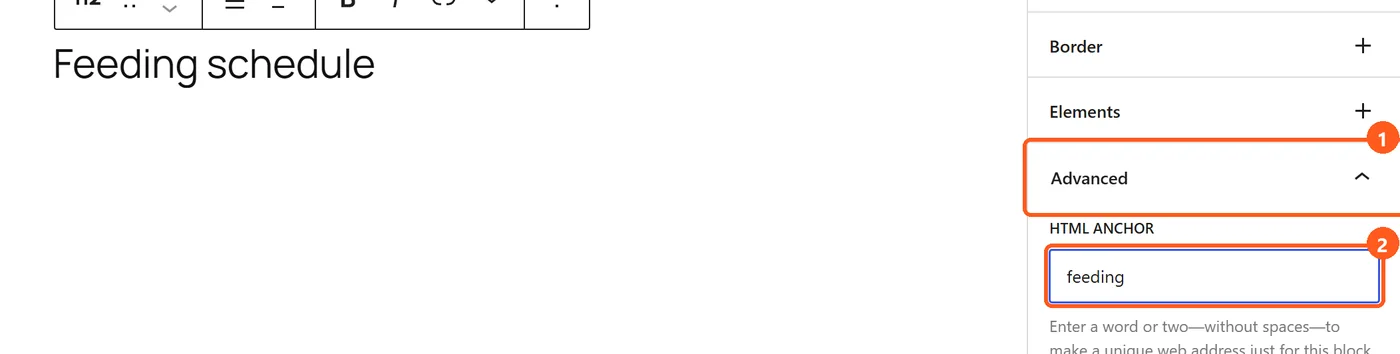
Give the heading an HTML anchor in the block settings, under Advanced, then link to # followed by that name, for example #pricing. WordPress turns spaces into hyphens as you type the anchor. To reach the section from another page, add #pricing after that page's address. WordPress.org describes the same steps in Page Jumps.
How do I change or remove an internal link?
Click the link and choose Edit link or Remove link. Ctrl+Shift+K (Cmd+Shift+K on a Mac) removes a link in the block editor, and Alt+Shift+S in the classic editor. The words stay in place.
How do I link to a page rather than a post?
The same search finds both. With the field empty, the search lists your 20 most recent pages, and if the page does not exist yet, type its title and choose Create page to add it as a draft.
How do I add an embedded link in WordPress?
If you mean a link inside your text, paste the URL over the selected words. If you paste a URL alone into an empty paragraph, WordPress tries to embed the content instead.
What is the difference between an internal and an external link?
An internal link points to another page of your own site. An external link points to a page on another domain.
Let a plugin place the links
The free plugin is in the WordPress plugin directory. It needs your own OpenAI key, and it writes each link into the post, where it stays if you uninstall.